Quick start with the sample project
Try every step of Agnos on the built-in sample: five small, messy documents from a made-up company.
Open the sample
On the first screen, press Open the sample project. If you already have projects, press Try the sample project in Help instead.
Agnos creates a project called “Sample project - Northwind Tools” and starts cleaning its files:
| File | What is messy about it |
|---|---|
staff-handbook.docx | A “Confidential - Internal Use Only” banner repeated through a Word handbook. |
price-list.xlsx | A hidden sheet, and formula cells with no stored result. |
support-article.html | Navigation, a cookie banner, a sidebar and a footer around one article. |
meeting-notes.txt | Damaged characters, “Page 3 of 10” markers and a line of lorem ipsum. |
faq.md | A table, very short answers, a code block, and sentences in Chinese and Korean. |
The sample uses the RAG / Retrieval Corpus purpose: settings for documents an AI tool will search and answer questions from (RAG). The five steps run along the top of the project.
Import
The files are already imported, and each card says Ready once its file is cleaned. They started cleaning straight away because Clean files as soon as I add them is on.
With your own documents, this is where you add files. See Import documents.
Preview
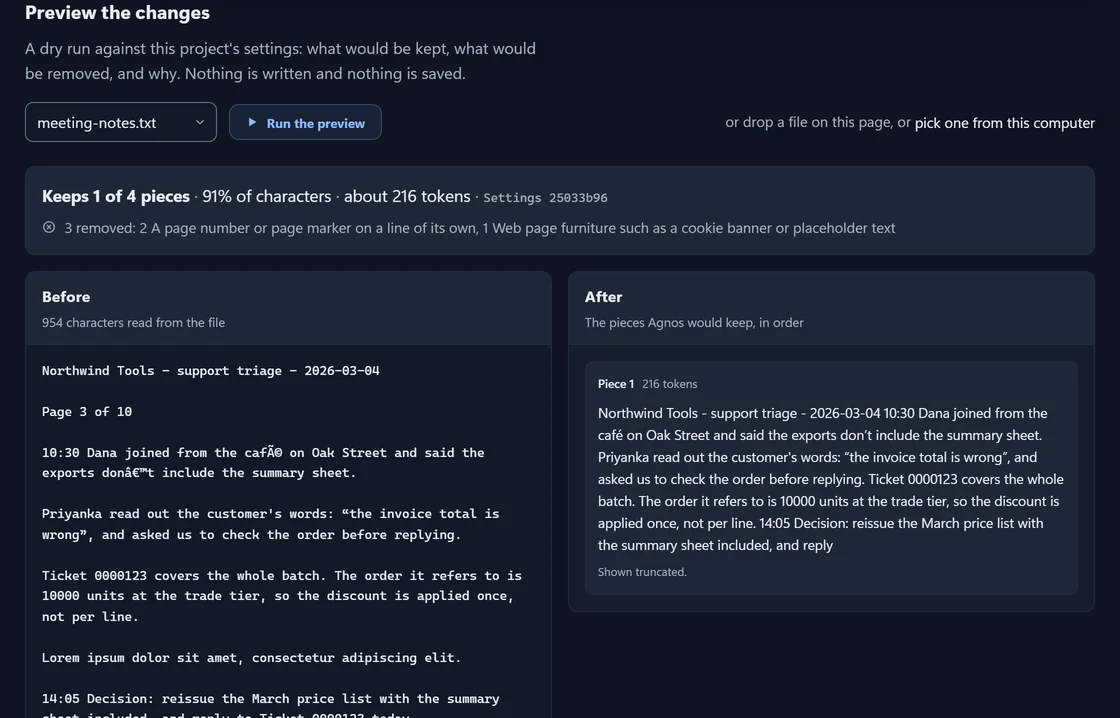
Preview is a dry run: it shows what the settings would do to one file, and saves nothing.
Choose
meeting-notes.txtin the list.Press Run the preview.
The summary says Agnos keeps 1 of 4 pieces, about 216 tokens, and removes 3. A token is a word or part of a word, the unit AI models measure text in.
Before shows the file as read, damage included: “café” arrives as café. After shows the piece Agnos would keep, with “café” repaired and the times, the amount and the ticket number exactly as typed.
Clean
Open Clean. All five files are Ready, each with the number of pieces it made.
price-list.xlsx also has Worth knowing (2): Agnos skipped the hidden sheet “Internal notes”, and 4 formula cells had no stored result, so they came through empty. This is not an error; Agnos is telling you what it did not read.
Review
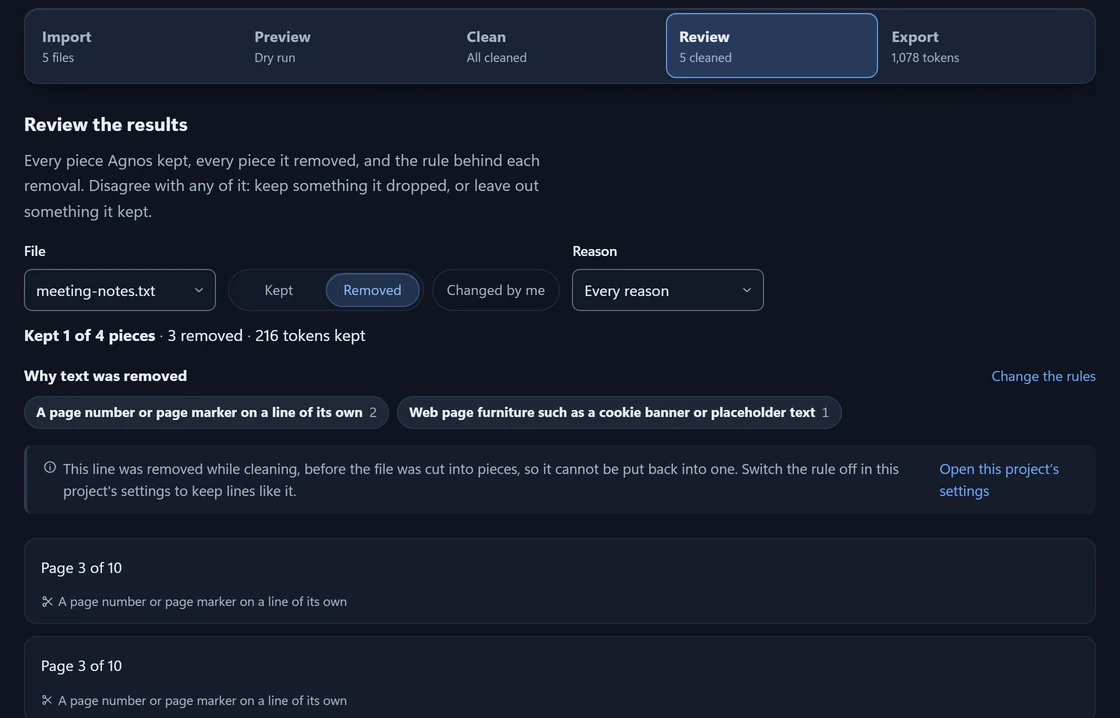
Review lists every piece Agnos kept and removed, with the rule behind each removal.
Press Review the results on the Clean step.
Under File, choose
meeting-notes.txt.Press Removed.
Two lines were removed as “A page number or page marker on a line of its own” and one as “Web page furniture such as a cookie banner or placeholder text”. Press a rule to see only its pieces.
Now choose staff-handbook.docx. The repeated banner is removed 3 times, but the clause that begins “Confidential Information means” is kept. In faq.md, nothing is removed.
To overrule Agnos, press Leave this out on any kept piece, and it stays out of the next export. Undo puts it back. See Review for what you can and cannot put back.
Export
Open Export. It shows 5 files, 19 pieces and about 1,078 tokens.
Leave RAG corpus chosen. It makes one JSONL file (one record per line), where each piece names the document it came from.
Press Build and download.
Agnos saves the file to your downloads. See Export for the other kinds and their options.
Your own documents
In Projects, press New project.
Type a name and press Create project.
Drop a folder of documents on the Import step.
Follow the same steps: Preview, Clean, Review, Export.
Something here wrong or unclear? Tell us and we will fix the page.