Install and first run
Install Agnos for your Windows account, open it for the first time, and later update or remove it.
Requirements
- Windows 10 or Windows 11, 64-bit.
- about 400 MB for the program, plus room for your documents and what Agnos makes from them.
- No administrator rights and no Python. Agnos brings its own copy.
- No internet connection, except for your licence.
Agnos opens in its own window using Microsoft Edge or Google Chrome. If neither is installed, it opens in your default browser.
Install
Download Agnos-Setup-2.3.0.exe (about 83 MB) from the download page. Nothing else is downloaded during the install. If your browser warns that the file isn’t commonly downloaded, choose Keep: see The browser warns about the download.
Open the installer. It installs for your account only, so Windows does not ask for an administrator password.
Follow the installer. Untick the desktop shortcut if you only want Agnos in the Start menu.
Leave the last box ticked to open Agnos when the installer finishes.
Windows may say “Windows protected your PC”, because the installer is new. If you downloaded it from this site, choose More info, then Run anyway. See Troubleshooting.
Where Agnos keeps things
The program and your work are in separate folders, so an update never touches your work.
| Folder | What is in it |
|---|---|
%LOCALAPPDATA%\Programs\Agnos | The program, with its own copy of Python. |
%LOCALAPPDATA%\Agnos | Your library: the database, your files, the cleaned text, your licence and the logs. |
%LOCALAPPDATA% is usually C:\Users\<you>\AppData\Local. Type it into the File Explorer address bar to go there.
Agnos does not encrypt your library. If your documents are sensitive, use Windows disk encryption, such as BitLocker.
Move your library
Close Agnos with Stop Agnos in the Start menu.
In the Start menu, open Edit environment variables for your account.
Add a variable named
AGNOS_HOMEset to the new folder, for exampleD:\Agnos.Move the contents of
%LOCALAPPDATA%\Agnosinto that folder.Open Agnos.
First launch
The first time Agnos opens, it prepares its library, which can take a few minutes. Later launches are quicker.
The first screen offers two ways to start:
- Open the sample project to try every step on five small documents. See Quick start.
- New project to start with your own documents. See Import documents.
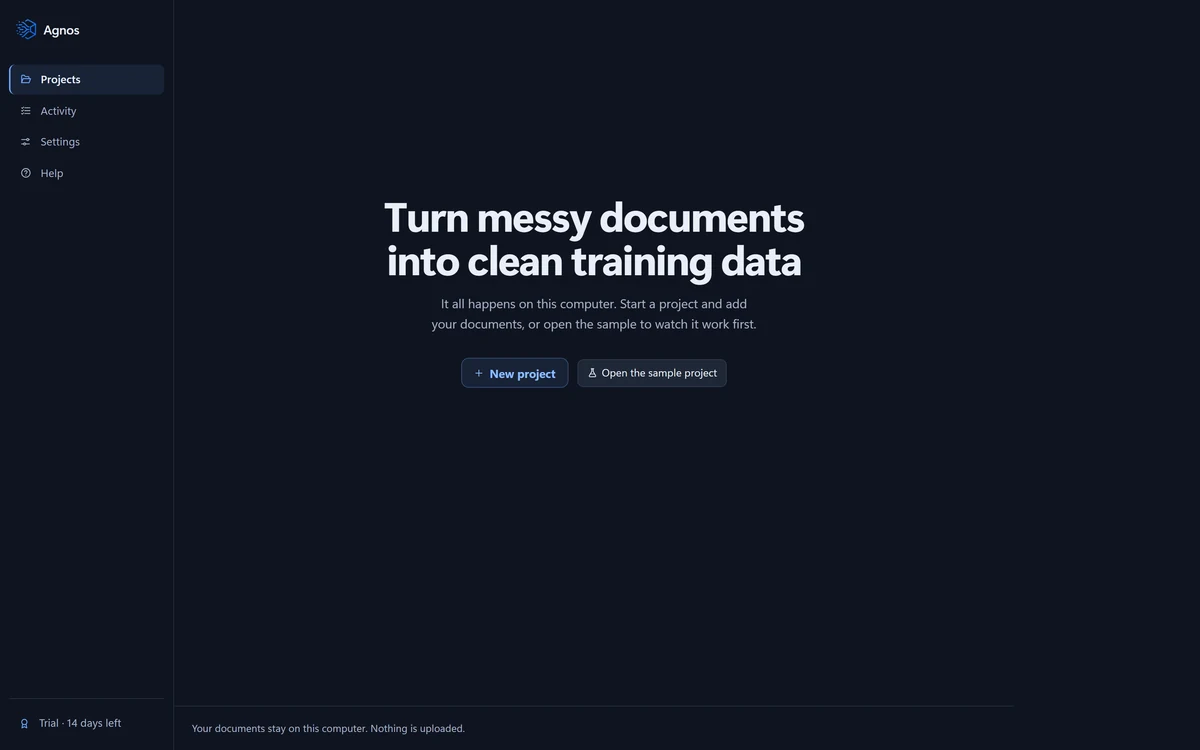
Your 14-day trial
The trial starts the first time Agnos opens, with no key and no card. For 14 days, everything in Pro works, including every kind of export.
The bottom of the menu shows the days left; press it to open the Licence page. After the trial, your projects, cleaning, Preview and Review keep working and nothing is deleted, but exporting needs a licence. See Pricing and Trial and licences.
Close and stop
Closing the window does not stop Agnos. It keeps cleaning in the background, and the shortcut reopens the window at once. To shut it down, use Stop Agnos in the Start menu.
Update
Agnos does not check for updates. To update, download the new installer from the download page and run it over your current version.
The installer stops Agnos if it is running and replaces the program. Your library and licence stay where they are. A 2.x licence includes every 2.x update.
The first time a new version opens, it backs up your database to %LOCALAPPDATA%\Agnos\data\backups. It keeps the five most recent backups.
Uninstall
Open Installed apps in Windows Settings (Apps & features in Windows 10).
Find Agnos and choose Uninstall.
When asked “Also delete your Agnos library?”, choose No to keep your work, or Yes to delete it too.
No is the default, and reinstalling finds your work as you left it. To delete the library later, delete %LOCALAPPDATA%\Agnos.
Moving to a new computer? With a key bought online, first press Deactivate this device on the old computer's Licence page, so the key is free. An offline key works on one computer only, so write to us for a key for the new one. See Moving to a new computer.
Something here wrong or unclear? Tell us and we will fix the page.